Common Issues When Converting PNG to SVG and How to Fix Them
Common Issues When Converting PNG to SVG and How to Fix Them
Converting a PNG (Portable Network Graphics) file to an SVG (Scalable Vector Graphics) format is a common task, especially for those involved in graphic design, web development, and digital art. SVG files offer distinct advantages, such as scalability without losing image quality, smaller file sizes, and compatibility with modern web standards. However, the conversion process from a raster format (PNG) to a vector format (SVG) can introduce several issues. In this post, we will delve into the common issues when Converting PNG to SVG and provide practical solutions on how to fix them.
At Techfileconvertz, we frequently help users handle file format conversions, including PNG to SVG, so let’s explore the challenges you might face during the process and offer solutions to each of them.

What Is PNG and SVG?
Before diving into the conversion issues, it's important to understand the two file formats involved.
PNG (Portable Network Graphics)
PNG is a raster-based image format, meaning it is made up of pixels. The format supports transparent backgrounds, lossless compression, and is widely used for web images, logos, and icons. However, since it is pixel-based, it doesn’t scale well. Enlarging a PNG image results in pixelation and loss of quality.
SVG (Scalable Vector Graphics)
SVG is a vector-based image format, which means that it uses mathematical equations to represent images rather than pixels. This allows SVG images to scale infinitely without losing quality. SVGs are often used for logos, icons, and web graphics due to their versatility and scalability.
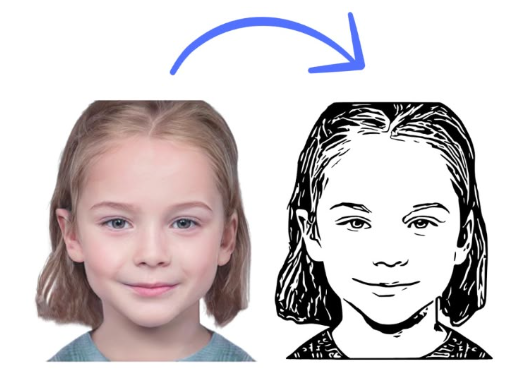
When you convert a PNG image to SVG, you are essentially transforming a pixel-based image into one made up of paths, lines, and shapes. While this transformation can be highly beneficial, it’s not without its complications.
Common Issues When Converting PNG to SVG and How to Fix Them
Now that we understand the basics of PNG and SVG, let’s dive into the most common issues users face when converting PNG to SVG and how to fix them effectively.
1. Loss of Detail in the Conversion
Problem: PNG images often contain subtle details, gradients, and complex textures. When converting these images to SVG, the resulting vector file may lose some of the finer details or look overly simplified. This is because the SVG format is based on paths and shapes, while PNG captures pixel-level details.
Solution:
Simplify the Image Before Conversion: One way to address this issue is by simplifying your PNG image before converting it. This can involve reducing complex textures or removing unnecessary elements.
Use a Higher Quality PNG: Starting with a high-resolution PNG image can help preserve more details during conversion. The higher the quality of the original file, the better the SVG conversion result.
Adjust the Conversion Settings: Some online tools and software allow you to adjust settings such as the number of colors or details during conversion. Play around with these settings to find a balance between preserving detail and simplifying the file.
2. Artifacts from Poor Tracing
Problem: When converting a PNG to SVG, the process involves tracing the pixel-based image into vector paths. If the original PNG is complex, the tracing algorithm might produce jagged or irregular shapes, resulting in visible artifacts in the final SVG.
Solution:
Manual Cleanup: After converting, open the SVG file in a vector editing tool (such as Adobe Illustrator, Inkscape, or Figma) and manually clean up the paths and shapes. This allows you to fix any artifacts or inconsistencies.
Use Advanced Conversion Tools: Use more sophisticated PNG-to-SVG conversion tools that employ advanced algorithms for tracing, which may yield cleaner and more accurate results. Tools like Vector Magic are known for producing high-quality vector conversions with minimal artifacts.
Adjust Trace Settings: Most conversion tools allow you to adjust the sensitivity of the trace. Fine-tuning the trace threshold can help produce smoother edges and more accurate shapes.
3. Overcomplicated SVG Files
Problem: One of the downsides of converting a detailed PNG to SVG is that the conversion can generate an excessive number of paths and shapes. This results in a bloated and overly complicated SVG file, which can be inefficient for web use. Large SVG files are slower to load and can affect website performance.
Solution:
Optimize the SVG File: Use tools like SVGO (SVG Optimizer) to compress and simplify the SVG file. These tools remove unnecessary metadata, redundant paths, and other elements that don’t affect the appearance of the image.
Limit the Number of Colors: Reducing the number of colors or simplifying gradients in the original PNG can reduce the complexity of the resulting SVG file.
Use SVG Code Cleaners: Manually remove extraneous code that may be added during the conversion process. SVG files are XML-based, so you can edit the file’s source code directly to remove unnecessary details.
4. Loss of Transparency
Problem: PNG images often contain transparent areas, which are useful for creating layered images and designs. When converting a PNG to SVG, transparency might not always be preserved correctly, resulting in unwanted white or solid backgrounds.
Solution:
Ensure Transparent Background Support: When converting your PNG, ensure that the tool or software you are using supports transparency in the resulting SVG. Most modern tools do, but older or more basic converters might not.
Use Editing Software to Add Transparency: If the transparency is lost during conversion, you can manually edit the SVG file using software like Inkscape or Illustrator. You can add a transparent background or adjust the opacity of objects to maintain the original effect.
5. Colors Not Matching
Problem: Colors in the PNG file may not match the final colors in the SVG file after conversion. This discrepancy can happen because PNG uses a different color model (RGB) than SVG, and the conversion may not map colors accurately.
Solution:
Check Color Settings: Ensure that the conversion tool you’re using correctly handles color profiles. Some tools allow you to specify whether you want to maintain RGB values or convert them to a different color space.
Manually Adjust Colors: After converting the PNG to SVG, open the file in a vector editing program and adjust the colors to match the original image.
Use Color Palettes: When designing PNG images for conversion, it’s helpful to stick to a limited color palette. This makes it easier to convert accurately and maintain color consistency in the SVG format.
6. Unwanted Backgrounds in SVG
Problem: Sometimes, during the conversion from PNG to SVG, an unwanted background color or white box appears around the image, which was not part of the original PNG file.
Solution:
Remove Background in Editing Software: Open the SVG file in a vector editing program and manually remove the unwanted background. You can either delete the background layer or change its color to transparent.
Use Transparent PNG Files: Make sure that the PNG file you are converting is a transparent PNG (with an alpha channel). This will help ensure that the transparency carries over into the SVG format.
7. Complexity of the SVG for Web Use
Problem: After converting a PNG image to SVG, you might encounter issues when trying to use the file on a website. Complex SVG files can be slow to load and may cause rendering problems in web browsers.
Solution:
Simplify the SVG: Use tools like SVGOMG or SVGO to simplify the file by reducing the number of paths and objects.
Minimize the Number of Objects: If your PNG has a lot of small details, consider grouping them or simplifying the design to reduce the number of elements in the SVG.
Use CSS and JavaScript for Interactivity: If the SVG is being used for a logo or interactive element on a webpage, consider adding interactivity with CSS or JavaScript rather than including too many individual paths or elements.
8. Text Conversion Issues
Problem: If your PNG file contains text, it can be challenging to preserve the text during conversion. Often, the text will be rasterized (converted into pixels), which means that it won't scale as cleanly as vector graphics in the resulting SVG.
Solution:
Convert Text to Paths Before PNG Conversion: If you know you’ll be converting the PNG to SVG, convert any text in the image to paths (vector shapes) in the original design software before saving the image as PNG.
Add Text Manually in SVG: After conversion, you can manually add text in the SVG file using the text element in vector editing software like Inkscape or Illustrator. This will ensure that the text remains editable and scalable.
Conclusion
Converting PNG to SVG offers many advantages, including scalability, smaller file sizes, and ease of use in web design. However, as we've seen, the process is not without its challenges. From loss of detail and poor tracing to transparency issues and overly complex files, there are several potential pitfalls to watch out for.
At Techfileconvertz, we recommend using high-quality PNG files, simplifying images where possible, and utilizing the best tools for conversion. After conversion, it's always a good idea to use vector editing software to clean up and optimize the resulting SVG for web use.
With the tips provided here, you should be well on your way to creating clean, efficient, and high-quality SVG files from your PNG images.


Comments
Post a Comment