How to Convert AVIF to SVG: Step-by-Step Tutorial
How to Convert AVIF to SVG: Step-by-Step Tutorial
Welcome to Techfileconvertz, your trusted resource for all things related to file conversions. If you’ve ever wondered how to Convert AVIF to SVG, you’ve come to the right place. In this step-by-step tutorial, we will guide you through the process of converting AVIF (AV1 Image File Format) to SVG (Scalable Vector Graphics). Whether you're a designer, developer, or just someone who loves tinkering with images, you’ll find this guide helpful and easy to follow.
Let’s dive in and understand what AVIF and SVG are, why you might want to convert between them, and the best tools and methods for a smooth conversion experience.

What is AVIF?
Before we get into the specifics of the conversion process, let’s first take a look at what AVIF is. AVIF, or AV1 Image File Format, is a modern image format that is designed to deliver high compression rates while maintaining excellent image quality. Based on the AV1 video codec, AVIF supports features like:
High compression efficiency: AVIF images are smaller than other formats like JPEG or PNG, making them ideal for websites and applications where speed and performance are essential.
Support for HDR: AVIF can store high dynamic range (HDR) images with more color depth and detail than traditional image formats.
Transparency and animation: AVIF supports both alpha transparency (like PNG) and animation (like GIF), offering flexibility for various use cases.
While AVIF is a great format for compressed images, there are times when you might need to use vector-based graphics instead. This is where SVG comes into play.
What is SVG?
SVG, or Scalable Vector Graphics, is a vector-based image format that is used widely across web design and graphic design. Unlike raster formats like JPEG or PNG, SVG images are based on XML (Extensible Markup Language) code and represent images as shapes, lines, and curves. Some key features of SVG include:
Scalability: Since SVG images are vector-based, they can be scaled up or down without losing any quality. This makes them perfect for logos, icons, and any other images that need to look crisp at different sizes.
Editability: SVG images are essentially code, so you can edit them with any text editor, which makes them extremely versatile for designers and developers.
Web compatibility: SVG is widely supported by all modern web browsers, making it a go-to format for web developers.
However, AVIF images are raster-based, meaning they’re made of pixels, and sometimes, you may need to convert them to SVG for the benefits that vector graphics offer.
Why Convert AVIF to SVG?
You may be wondering why you would want to convert AVIF to SVG. Well, there are several reasons why someone might make this conversion:
Scalability: SVG images are resolution-independent, meaning they can be resized infinitely without pixelation. If you’re working with a detailed image and need it to scale across different device resolutions or screen sizes, SVG might be the better choice.
Transparency: While AVIF supports transparency, SVG provides more control over how the transparency behaves and can be manipulated through CSS and JavaScript, which is particularly useful for web development.
Web performance: Vector images like SVG often have smaller file sizes than raster images, especially for simple graphics. This can help optimize website performance, especially when dealing with icons and logos.
Illustration & Design: If you want to create designs or illustrations that need to be clean and easily modifiable, SVG is the ideal format because it allows for easy editing.
Now that you know why you might want to convert AVIF to SVG, let’s get to the conversion process itself.
Step-by-Step Tutorial: How to Convert AVIF to SVG
Here’s a detailed guide on how to convert AVIF to SVG with easy-to-follow steps.
Step 1: Prepare Your AVIF Image
The first thing you need to do is have an AVIF image ready for conversion. Make sure the image you’re converting is suitable for the purpose you have in mind. AVIF files can be highly detailed, so keep in mind that complex images (such as photographs) may not convert well to SVG, which is best suited for simpler, geometric shapes and designs.
If you don’t have an AVIF image yet, you can easily download one from stock photo websites or convert another image format like JPG or PNG into AVIF using various online converters.
Step 2: Choose the Right Conversion Method
There are several ways to convert AVIF to SVG, but the best method depends on the complexity of the image and the tools you're comfortable with. Here are a few options:
Option 1: Use Online Conversion Tools
For most people, the easiest and quickest method is to use an online converter. These tools do all the heavy lifting for you. Here’s how to use an online AVIF to SVG converter:
Visit a reputable online file conversion site, such as Convertio, CloudConvert, or Online-Convert.
Upload your AVIF image to the website.
Select “SVG” as the output format.
Start the conversion process by clicking on the “Convert” button.
Once the conversion is complete, download the SVG file.
Using an online converter is perfect for those who don’t want to deal with software installation or complex processes. However, keep in mind that the quality of the conversion may not always be perfect, especially for intricate designs.
Option 2: Use Vectorization Software
If you want more control over the conversion, you can use vectorization software to manually convert the AVIF image to SVG. This method is particularly useful for converting logos or simple illustrations. Some popular vectorization tools include:
Inkscape: A free, open-source vector graphics editor that allows you to trace raster images and convert them to SVG format.
Adobe Illustrator: A professional-grade design tool that includes powerful vectorization features.
Here’s how to do it with Inkscape:
Open Inkscape and create a new document.
Import your AVIF image by going to File > Import.
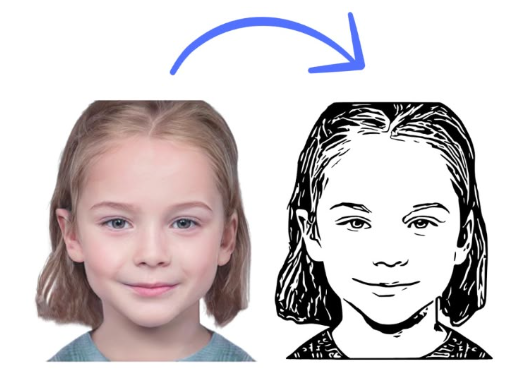
Select the image and then go to Path > Trace Bitmap.
Adjust the settings based on how detailed you want the vector to be. You can fine-tune options like brightness cutoff, edge detection, and more.
Click OK to convert the image into vector format.
Once you’re satisfied with the result, save the file as SVG by going to File > Save As and choosing SVG as the format.
Option 3: Manual SVG Creation
If you're skilled with graphic design or coding, you may want to create the SVG manually by tracing over the AVIF image or recreating the design in a vector format. This process is more time-consuming but gives you complete control over the final result.
Step 3: Fine-Tuning the SVG
After the conversion, it’s time to fine-tune your SVG image. Sometimes the automatic conversion process may not produce perfect results, especially if the original AVIF image is complex. Here are a few things you can do:
Clean up the code: Since SVG files are XML-based, you can open the SVG file in any text editor (e.g., Notepad or Sublime Text) to clean up any unnecessary code or adjust certain attributes.
Optimize the SVG: Use tools like SVGOMG or SVGO to optimize your SVG file and remove any redundant code. This will reduce the file size and improve web performance.
Adjust colors and shapes: If needed, you can tweak the design by changing colors, adding effects, or modifying shapes using vector editing software like Inkscape or Adobe Illustrator.
Step 4: Implement the SVG on Your Website or Project
Once you’re happy with the converted SVG, it’s time to implement it into your project. SVG images are incredibly versatile and can be used in various ways, such as:
On websites: Embed SVG images directly in HTML code using the <svg> tag.
In CSS: You can use SVGs as background images in CSS.
With JavaScript: SVGs can be manipulated using JavaScript, which is useful for animations or interactive elements.
Conclusion
Converting AVIF to SVG is a process that can be done in a variety of ways depending on your needs and expertise. Whether you choose an online tool for quick conversion, use vectorization software for more control, or create the SVG manually, the steps outlined in this tutorial will help you achieve the results you’re looking for.
At Techfileconvertz, we hope this guide has made the process of converting AVIF to SVG easy to understand and follow. Remember, the conversion might not be perfect for every type of image, so it’s essential to choose the right method for your specific needs.
If you found this tutorial helpful, stay tuned for more informative guides on file conversion, design tips, and technology insights here at Techfileconvertz. Happy converting!


Comments
Post a Comment