How to Turn SVG into PNG for Web and Print Use: A Complete Guide
How to Turn SVG into PNG for Web and Print Use: A Complete Guide
In the world of web design, graphic design, and digital media, one of the most important tasks is ensuring that the images you use are compatible with different platforms, resolutions, and media types. If you work with vector graphics, particularly Scalable Vector Graphics (SVG), you might find yourself needing to convert them into raster formats like PNG for various reasons. Whether you're working on a website, an e-commerce platform, a digital ad campaign, or even print materials, converting SVG to PNG is a necessary skill to master.
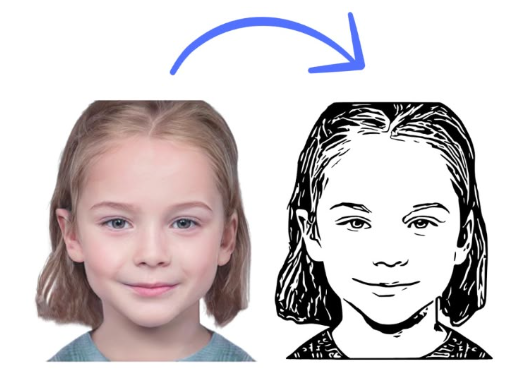
In this comprehensive guide, we'll walk you through the entire process of How to Turn SVG into PNG for web and print use. We’ll explain the significance of both formats, the reasons you might need to convert SVG to PNG, and provide a step-by-step tutorial for performing this conversion using a variety of tools.
By the end of this article, you'll be equipped with everything you need to efficiently convert SVG files to PNG for both web and print applications. Let’s dive in!
What Is an SVG and Why Do You Need It?
Before we delve into how to convert an SVG file into PNG, it’s essential to understand what SVG files are and why they are so widely used in design.
What Is an SVG File?
SVG (Scalable Vector Graphics) is a file format used to describe vector-based graphics. Unlike raster images (like JPEG or PNG), SVG files are made up of XML code that defines shapes, colors, lines, and other design elements. Because SVG is a vector format, it can be scaled to any size without losing quality or becoming pixelated.
Advantages of SVG:
Scalability: SVG files can be resized infinitely without losing image quality. This makes them perfect for responsive design, where images need to adapt to different screen sizes.
Small File Size: Since SVG files describe shapes with code, they tend to have smaller file sizes than high-resolution raster images.
Transparency: SVG supports transparent backgrounds, which is ideal for overlaying logos or icons onto different colored backgrounds.
SEO-Friendly: The XML nature of SVG allows search engines to index the text inside, which can contribute to SEO if the SVG contains textual elements.
Why Use SVG in Web and Print?
In the digital world, SVG files are commonly used for logos, icons, illustrations, and even detailed graphics like infographics. They are versatile and lightweight, making them perfect for websites that need to load quickly and scale without any loss of quality. For print, SVG is useful in creating high-resolution, scalable images that maintain quality when printed in large formats.
However, despite their many advantages, SVG files are not always the best choice for every scenario, especially when it comes to compatibility. That’s where converting SVG files into PNG comes in.
What Is a PNG and Why Do You Need It?
PNG (Portable Network Graphics) is a raster image format used to store images in a lossless compression format. Unlike SVG, PNG images are composed of pixels, meaning that the image can lose quality if resized improperly, especially when scaled up. However, PNGs are widely used due to their high-quality image representation and support for transparent backgrounds.
Advantages of PNG:
High Quality: PNG images support lossless compression, meaning that no image quality is lost when saving.
Transparency: PNG supports alpha channel transparency, allowing images to have clear, crisp edges without a solid background.
Universal Compatibility: PNG is one of the most widely supported image formats across all platforms, browsers, and devices, making it an excellent choice for web use.
Why Use PNG in Web and Print?
For the web, PNG is often used for graphics, icons, and images that require transparency. Its high-quality output makes it suitable for detailed images like logos and illustrations. When printed, PNG images are ideal for materials where high resolution is required, such as marketing flyers or posters.
Reasons to Convert SVG to PNG for Web and Print Use
There are several reasons why you might need to convert an SVG file into a PNG, whether for web use, printing, or other applications. Let’s look at some of the main reasons for converting SVG to PNG:
Browser Compatibility: While modern browsers support SVG files, older browsers or certain versions of Internet Explorer may not render SVG images correctly. Converting SVG to PNG ensures compatibility across all browsers and devices.
Raster-based Requirements: Some platforms or printing services only support raster formats like PNG. For example, certain print jobs may require high-resolution images that are best handled by PNG files.
Consistent Image Quality: Although SVG is scalable, some print devices or specific web applications may require a fixed resolution. Converting to PNG ensures consistent image quality.
Faster Loading Times: While SVG files are lightweight, PNG images may load faster in certain contexts, particularly if the SVG contains complex elements or heavy code.
Now that we’ve explored the reasons for converting SVG to PNG, let’s get into the steps of how to do it.
How to Turn SVG into PNG for Web and Print Use: A Step-by-Step Guide
There are several ways to convert SVG to PNG, including using online tools, graphic design software, or even code-based methods. Below, we’ll explain each method in detail, so you can choose the best one for your needs.
Method 1: Using Online Converters (Quick and Easy)
One of the fastest and easiest ways to convert SVG files to PNG is through online conversion tools. These platforms allow you to upload an SVG file and download the converted PNG file within seconds.
Steps:
Go to a reliable online SVG to PNG converter like Techfileconvertz, or use any of the popular converters available.
Upload the SVG file from your computer or drag and drop it into the website’s interface.
Select PNG as your output format.
Choose any additional options, such as resolution or image size adjustments.
Click the "Convert" button and wait for the conversion to complete.
Once the conversion is done, download the PNG file to your device.
Online converters are ideal for quick, one-off conversions. However, they may have limitations regarding file size, resolution, or customization options.
Method 2: Using Adobe Illustrator (For Professional Use)
Adobe Illustrator is one of the most powerful graphic design tools available, and it provides a seamless way to convert SVG files to PNG. This method is perfect for those who need high-quality, customizable PNG files for both web and print use.
Steps:
Open Adobe Illustrator and load the SVG file you want to convert.
Make any necessary adjustments to the image (such as resizing, changing colors, or adding effects).
Once satisfied with your design, go to File > Export > Export As.
Choose PNG as the output format.
Select the desired resolution and other export settings, such as transparency.
Click "Export," and your PNG file will be saved on your computer.
Illustrator allows you to control the resolution and quality of the output, making it ideal for professional printing and web use.
Method 3: Using Inkscape (Free and Open-Source Software)
Inkscape is a popular open-source vector graphic editor that allows you to easily convert SVG files to PNG. It’s a great alternative to Adobe Illustrator if you’re looking for a free tool to work with.
Steps:
Download and install Inkscape from Inkscape.
Open the SVG file in Inkscape.
Adjust the image if needed.
Go to File > Export PNG Image.
Choose your desired export settings (such as image size, DPI, and background transparency).
Click "Export" to save the PNG file.
Inkscape is user-friendly, and it provides a lot of customization options, making it a fantastic choice for both novice and advanced users.
Method 4: Using GIMP (For Advanced Image Editing)
GIMP (GNU Image Manipulation Program) is another open-source tool used by graphic designers and photographers alike. It’s capable of converting SVG to PNG while also providing advanced editing features.
Steps:
Open GIMP and import the SVG file by going to File > Open.
Make any necessary adjustments or edits to the file.
Go to File > Export As, and choose PNG as the output format.
Adjust the resolution and export settings.
Click "Export" to generate your PNG file.
GIMP is particularly useful if you need to manipulate the image before converting it, as it gives you access to powerful editing tools.
Conclusion
Converting SVG to PNG is an essential skill for any designer or web developer who works with images. Whether you're preparing images for a website, an online store, a social media campaign, or print materials, knowing how to turn SVG into PNG for web and print use can save you time and ensure that your designs look great across all platforms.
There are various ways to convert SVG to PNG, including using online converters, professional graphic design software like Adobe Illustrator, and open-source programs like Inkscape and GIMP. Depending on your specific needs—whether it’s ease of use, customizability, or advanced editing—each tool offers its advantages.
At Techfileconvertz, we provide an easy-to-use, fast, and reliable SVG to PNG converter that simplifies the process, ensuring that you can get your files in the right format for your web and print projects. So, whether you're working on a high-quality print project or need images that load quickly on your website, converting SVG to PNG is a fundamental part of the design process.
Now that you understand how to turn SVG into PNG for web and print use, you’re ready to start converting files for all your design projects! Happy designing!


Comments
Post a Comment